
Use TalentVeil from your AI
Connect TalentVeil to the AI assistant you already use. Then ask in plain language: set up a project, turn CVs into Blind CVs and get the link for your client.
CV files go straight to TalentVeil’s EU servers. They never go through the AI chat.
Connect
Section titled “Connect”Select Connect your AI above your name in the menu, or open AI assistants in the menu.
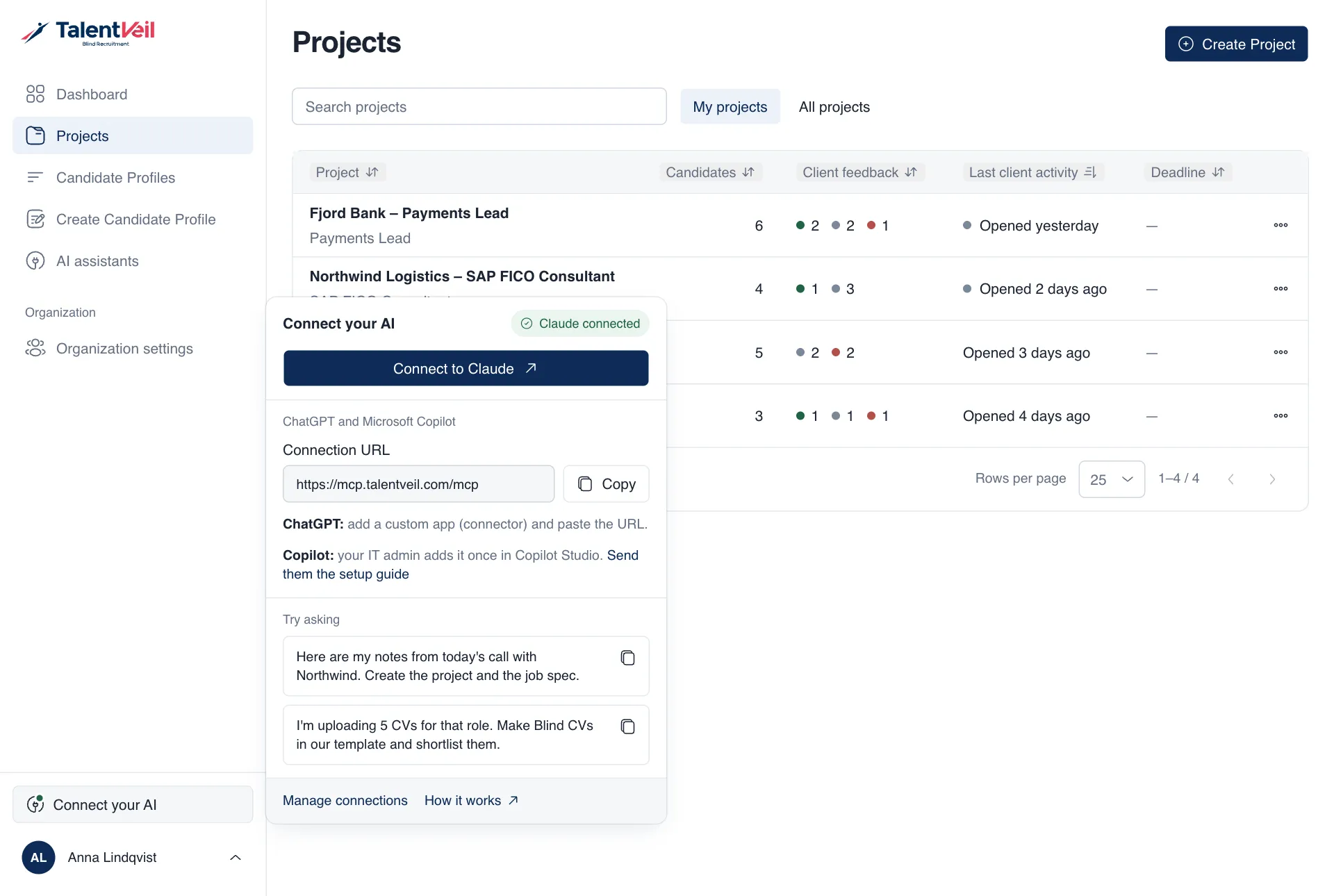
| Assistant | How |
|---|---|
| Claude | Connect Claude. Two clicks and a sign-in. |
| ChatGPT | Add a custom app (connector) and paste the connection URL from the panel. Sign in to TalentVeil when asked. |
| Microsoft Copilot | Your IT admin adds it once. Send them the setup guide. |
What you can ask
Section titled “What you can ask”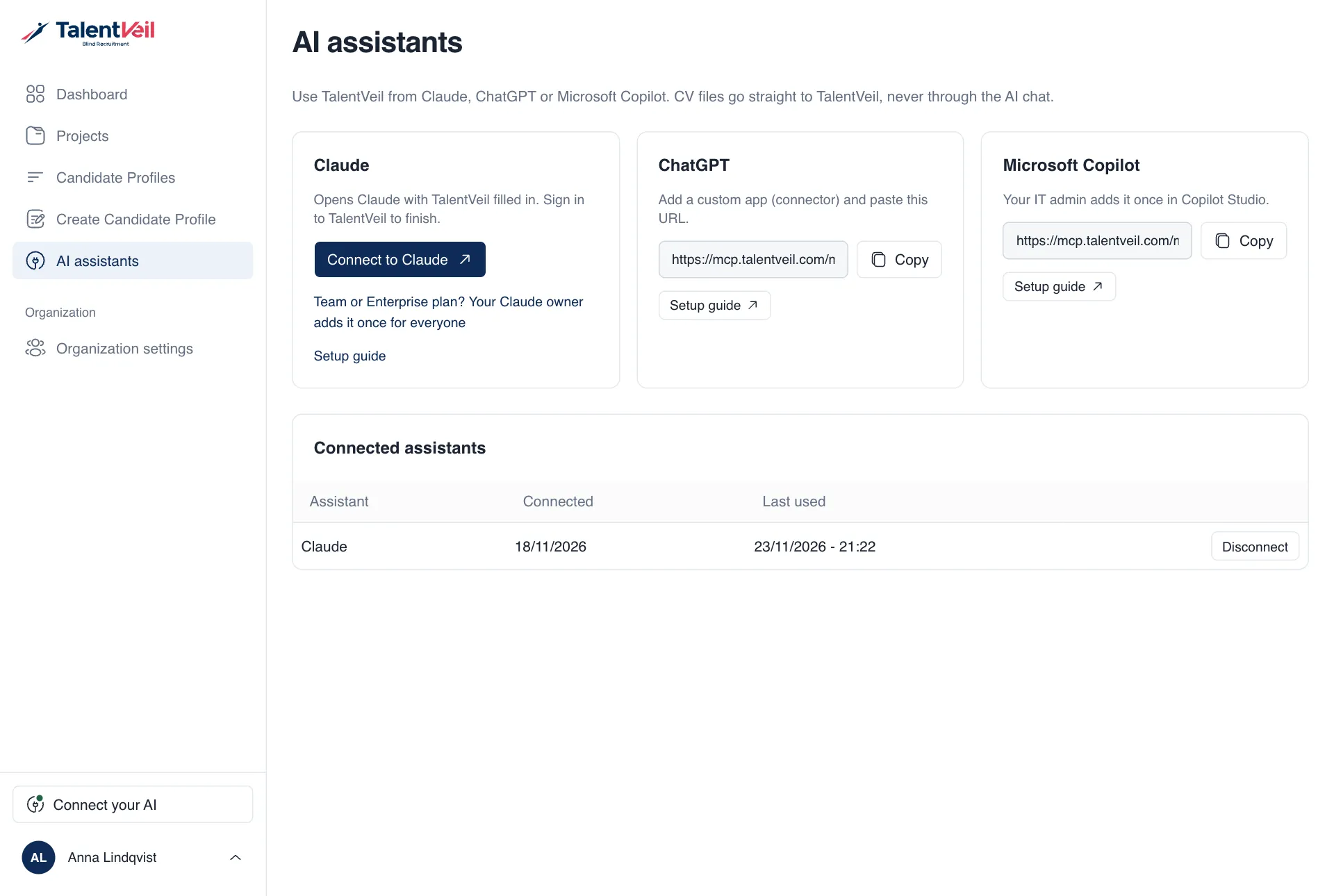
| Ask for | Example |
|---|---|
| A project | Here are my notes from today’s call with Northwind. Create the project and the job spec. |
| Blind CVs | I’m uploading 5 CVs for that role. Make Blind CVs in our template. |
| A shortlist | Shortlist Marta and Jan. Mark Piotr as not proceeding. |
| Recommendations | Write a recommendation for each candidate against the job spec. |
| A client link | Give me the client link for the Northwind project. |
| A change to a link | Add Jan to the link and update the welcome message. The client keeps the same address. |
| Client feedback | Did the client look at the shortlist? What did they say? |
Everything the assistant creates appears in TalentVeil. Review and edit it there as usual.
Uploading CVs
Section titled “Uploading CVs”When you ask for Blind CVs, an upload box opens in the chat. Drop your CV files into it. TalentVeil makes the profiles and the assistant carries on.
If your assistant can’t show the box, it gives you a link instead. The link opens Add candidates in the right project.
What the assistant can do
Section titled “What the assistant can do”- It can do what you can do in TalentVeil, and nothing more. You need permission to create Blind CVs.
- It sees profiles and candidate names the way you do. It never gets the original CV files.
- It does not delete anything, change billing or users, or email your client. You send the link yourself.
Disconnect
Section titled “Disconnect”Open AI assistants in the menu and select Disconnect next to an assistant. It stops working at once. Connect it again whenever you like.
Organization admins can see and disconnect every connection, or turn AI connections off for the whole team. See AI assistants in settings.